Cisco is done betting that customers will choose WebEx just because they already own Cisco hardware. In September, the company will launch Devices for Zoom Rooms, according to Cisco. The program puts a certified, native Zoom Rooms experience on select Cisco endpoints, including the Desk Pro G2, Room Bar, Bar Pro, Board Pro G3 and RoomKit.
That is a meaningful shift from where Cisco stood before. Customers who wanted a Cisco room with Zoom software have had to rely on standard SIP interoperability, a workaround that required extra integration work on the back end. The new program replaces that patchwork with a fully certified experience built into the hardware itself.
Cisco is not stopping at Zoom. The company is also deepening its Microsoft Teams Rooms integration, adding dedicated device management channels inside Control Hub and folding Copilot into its agentic tools, according to Cisco. Taken together, the moves signal a clear message: the meeting platform a customer picks, whether Teams, Zoom or WebEx, should not determine whether that customer gets a modernized Cisco room.
What it means for entrenched Cisco shops
Pearl Technology Executive Vice President Jeremy Caldera has spent years installing and supporting Cisco rooms for integration clients, and he called the announcement a genuine surprise. Cisco has long been known as a proprietary-first vendor, he said, and this represents a real shift in that posture.
“Cisco’s been the king of proprietary for how long?” Caldera said. “There’s still those clients who are wholly ingrained in the world of Cisco, but they’re still needing Teams rooms and Zoom rooms.”
Caldera does not expect the announcement to pull new customers into the Cisco ecosystem. Buyers who have already standardized on other hardware platforms are unlikely to switch because of this update alone, he said. However, he sees a clear winner in the deal: organizations already committed to Cisco hardware who previously had to maintain separate SIP-based workarounds to support Zoom or Teams rooms. Those customers no longer need that extra layer, and some had been quietly evaluating other manufacturers because of the added cost and complexity. This update removes that pressure point entirely.
The practical effect, Caldera said, is retention rather than expansion. Cisco protects the customers it already has instead of winning converts from Crestron, HP or other platforms. For AV integrators managing mixed environments, that still matters. Fewer custom SIP integrations mean less maintenance overhead and fewer points of failure in rooms that are already in production.
The higher education vertical offers a useful test case, because AV and IT are unusually intertwined there. Britt Yenser, AV Manager at Northampton Community College and an active member of the Higher Education Technology Managers Alliance (HETMA), said the Cisco-Zoom news speaks directly to a dynamic her sector already lives with daily.
“We say across the industry that AV is IT, but that is extremely true in higher ed,” Yenser said. “We are housed within the IT department. The more that we can communicate clearly with the other IT partners and meet them where they are, the more successful we can be.”
Cisco carries particular weight in higher education IT departments, where campus networking decisions are often made independently of the AV team and Cisco is frequently the default standard. Zoom and Google Meet, meanwhile, are common conferencing choices in that same environment. Before this announcement, an AV team wanting to standardize on Cisco hardware for a Zoom-based campus faced the same integration burden Caldera described. Now, that team can stay inside a hardware platform its IT department already trusts and supports, without a secondary integration layer.
That alignment matters beyond convenience. When AV and IT can standardize on shared hardware, the two departments have one less point of friction in a relationship that already requires constant coordination. A tech manager fighting for network resources or endpoint budget has an easier case to make when the AV hardware sitting on that network is the same brand IT already manages everywhere else.
The bigger picture for buyers
For corporate IT and AV decision-makers weighing a Cisco purchase, the calculus has changed only for a specific group: organizations already leaning toward Cisco hardware who need platform flexibility on the software side. For that buyer, procurement got simpler. Fewer vendors, fewer support contracts and fewer integration points reduce total cost of ownership over the life of the equipment.
For buyers who have not yet standardized on any single hardware platform, this announcement alone probably will not tip the decision. Platform interoperability is one of several factors in a room standardization decision, alongside cost, existing infrastructure and IT department preference. But it does remove one argument against Cisco that competitors could previously use: the idea that choosing Cisco meant locking into WebEx.
Cisco’s September launch will be worth watching closely, particularly for how the certified Zoom experience compares to native Zoom hardware from Zoom’s own certified partners. AVNation will continue to track how the rollout performs once it reaches customers.
Zoom Meetings still exists. The meeting links still work. Users can still click a Zoom link, join a call, turn on the camera, share a screen, and get through a meeting the way they have for years.
What changed is the container around that experience.
Zoom Workplace is Zoom’s broader collaboration app and platform. It includes Zoom Meetings, but it is not limited to meetings. It brings meetings, Team Chat, Zoom Phone, Whiteboard, Mail, Calendar, Scheduler, Zoom Canvas or docs features, and Zoom AI Companion into one work environment.
That distinction matters because most users are not asking a branding question. They are asking an operational one.
Do I need to download something new?
Will my Zoom meetings still work?
Does this change my conference rooms?
Do users need training?
Does IT need to change settings, deployment packages, or support documentation?
That is where Zoom Workplace matters.
What Zoom Workplace includes
The simplest way to understand Zoom Workplace is this: Zoom is no longer only trying to be the app people open when they have a video meeting. Zoom Workplace is meant to be the app people keep open during the workday.
Depending on the license and configuration, Zoom Workplace can include:
Zoom Meetings
Zoom Team Chat
Zoom Phone
Zoom Whiteboard
Zoom Mail and Calendar
Zoom Scheduler
Zoom Canvas, Docs, Notes, or related productivity tools
Zoom Clips
Zoom AI Companion
Workspace and room-related tools connected to Zoom Rooms
Not every organization will use all of those pieces. Some will still treat Zoom as a meeting platform. Others will use it more like a collaboration workspace that competes with Microsoft Teams and Google Workspace.
That is the real Zoom vs Zoom Workplace difference. Zoom Meetings is the familiar video-meeting service. Zoom Workplace is the larger app and platform that surrounds it.
What changed for everyday users
For most users, the first change is cosmetic. The app may now say Zoom Workplace instead of simply Zoom or Zoom Meetings. The icon and interface may look different. The tabs and side panels may expose more tools than users remember seeing before.
That does not mean the old Zoom meeting experience disappeared.
A user who only needs to join a meeting can still do that. A meeting invite still contains a join link. The user can still open that link in the Zoom Workplace app or, when allowed by the host, join from a browser. The meeting behavior is familiar enough that most users will not need formal retraining just to attend a call.
Where users may need help is in the new tools around the meeting.
Zoom Workplace pushes more collaboration into the same app. A user may see chat threads, calendar views, AI Companion prompts, docs, whiteboards, phone features, or post-meeting summaries in places they did not expect. That is useful if the organization is standardizing on Zoom Workplace as a collaboration platform. It is confusing if the organization only told users, “We use Zoom for meetings.”
The user-training issue is not how to click Join. It is explaining what the app now contains and which tools the organization actually wants people to use.
What did not change
The most important thing that did not change is the basic role of Zoom Meetings.
Zoom Workplace did not turn every Zoom link into something new. It did not require users to abandon video meetings. Did not make Zoom Rooms irrelevant. Does not mean that a conference room suddenly works differently because the desktop app has a broader name.
In practical terms, these things remain familiar:
Zoom meeting links still send people to Zoom meetings.
Users can still join from a meeting invite.
The Zoom Workplace desktop and mobile app still handles meeting participation.
Browser joining remains an option when enabled.
Zoom Rooms still function as the dedicated room-system layer.
SIP/H.323 interoperability and room-connector workflows remain separate room and infrastructure considerations.
That last point is important for IT and AV teams.
A rebranded or expanded desktop app does not remove the need to manage meeting-room hardware. The user’s laptop experience and the conference-room experience are connected, but they are not the same thing.
Zoom Workplace app vs Zoom Meetings
The Zoom Workplace app is now the main user-facing app for desktop and mobile. For many users, this is the app they download when they install Zoom.
Zoom Meetings is still the meeting experience inside that app.
Think of it this way. Microsoft Teams is both an app and a meeting experience. Google Workspace is a broader work platform that includes Google Meet. Zoom Workplace now moves Zoom closer to that model.
That can be a good thing for organizations that want fewer separate apps. It can also create confusion for organizations that already have Microsoft 365, Google Workspace, Slack, or another collaboration platform in place.
If the company already uses Microsoft Teams for chat and Zoom for meetings, does IT want users adopting Zoom Team Chat too? Where employees already use Outlook and Exchange, should Zoom Mail and Calendar be enabled? If meeting summaries are available through Zoom AI Companion, who owns the policy for when those summaries can be generated and shared?
Those are not branding questions. Those are governance questions.
What IT teams should check
For IT teams, the shift to Zoom Workplace is less about panic and more about housekeeping.
Start with app versions. Make sure your managed devices are running supported versions of the Zoom Workplace desktop and mobile app. If you use software deployment tools, confirm that the package name, installer behavior, and update process still match your internal documentation.
Then review user training. Users do not need a 90-minute class on Zoom Workplace. They need a clear answer to what changed, what did not, and which features your organization supports.
The next area is AI Companion. This is where IT, legal, compliance, and business leadership need to be aligned. AI-generated meeting summaries, in-meeting questions, chat summaries, and document assistance can be useful. They can also raise questions about retention, sharing, external participants, regulated data, and user consent.
At minimum, IT should review:
Which AI Companion features are enabled
Whether meeting summaries start automatically or manually
Who can receive or share AI-generated summaries
Whether summaries can be shared outside the organization
How AI Companion settings differ by group, role, or account
What users are told when AI features are active
Whether the organization’s legal, privacy, and compliance teams have reviewed the policy
Admins should also check the broader app experience. If Zoom Workplace exposes Mail, Calendar, Phone, Team Chat, Whiteboard, Canvas, or other tools, decide whether those features are part of the official workflow or just available because the app includes them.
The worst version of this rollout is not technical failure. It is silent feature creep. Users start using tools IT did not document, compliance did not review, and support teams were not trained to troubleshoot.
What this means for Zoom Rooms
This is where the AV side matters.
Zoom Workplace affects the user and app layer. Zoom Rooms still live in the room layer.
A Zoom Room is not just “Zoom on a screen.” It is a managed meeting-room system. A room may include a dedicated Zoom Rooms appliance or computer, a controller, a scheduling display, cameras, microphones, speakers, displays, touchscreens, network connections, and device-management settings.
That room has to work before the meeting starts. It has to launch reliably. Has to route audio correctly. It has to show the right camera. Has to handle screen sharing. It has to stay updated. Has to remain supportable when something breaks five minutes before an executive meeting.
Zoom Workplace does not eliminate any of that.
In fact, the broader Zoom Workplace strategy may make the room experience more important. If users are doing more inside Zoom before and after the meeting, they will expect the physical room to feel like part of the same workflow. They will expect calendar joins, whiteboard access, AI features, room booking, content sharing, and hybrid participation to behave consistently.
That requires coordination between IT, AV, facilities, and workplace teams.
A Zoom Room still needs:
Certified or compatible room hardware
Properly configured cameras and microphones
Displays sized for the room
A controller users understand
Calendar integration
Network reliability
Audio processing that matches the room
Firmware and app update management
Remote monitoring
A support process for failed joins, audio problems, and device issues
This is why Zoom Workplace should not be treated as a simple app rename in enterprise environments. The app may be the most visible change, but the room system is where user confidence is won or lost.
For organizations evaluating broader platform changes, this connects directly to conference-room migration planning. AVNation has covered that larger question in how to switch conference rooms from Zoom or Teams to Visio, where the real issue is not the meeting service alone. It is what happens to the room when the collaboration platform changes.
The real risk is unclear ownership
Zoom Workplace sits at the intersection of several teams.
IT owns identity, deployment, security, and admin policy.
AV owns the room experience, cameras, microphones, displays, and support standards.
Facilities may own room scheduling, space planning, and workplace experience.
Legal and compliance may own retention, AI policy, and external sharing rules.
Users just want the meeting to work.
That split is where confusion happens.
If Zoom Workplace is “just Zoom,” no one reviews the new pieces carefully. If Zoom Workplace is treated as an entirely new platform, teams may overcomplicate what is still a familiar meeting experience for most users.
The right answer is in the middle. Treat Zoom Workplace as the expanded Zoom app and collaboration platform. Do not treat it as a replacement for Zoom Meetings. Do not treat it as irrelevant to room support.
It is a user-experience change, an IT-management change, and a workplace-technology change.
What users should know
For everyday users, the message should be simple.
Zoom Workplace is still where Zoom meetings happen. The app may include more tools than before, including chat, phone, calendar, whiteboard, docs, and AI Companion features. Your organization may not use every tool inside the app. Follow internal guidance on which features are approved.
Users should also understand that AI Companion is not just another button. If meeting summaries, in-meeting questions, or AI-generated notes are enabled, those features may create records of meeting content. Users should know when AI features are active and how summaries are shared.
This is similar to the confusion around presence in Microsoft Teams. A small interface change can carry more meaning than users expect. In Teams, the green status dot often gets misread as a productivity signal. AVNation covered that issue in how long Microsoft Teams stays green. Zoom Workplace creates a different version of the same problem: the app shows more information and more options, but users need context to understand what those signals and tools actually mean.
The same applies to free and paid meeting tools. As AVNation explained in [what you actually get with free Google Meet](ADD INTERNAL LINK), the practical question is rarely whether a product technically works. The better question is whether it gives the organization enough control, reliability, and support for the meetings that matter.
What IT and AV teams should do next
The best next step is not a large migration project. It is a short readiness review.
Confirm what version of the Zoom Workplace app is deployed. Review which Zoom Workplace features are enabled. Check AI Companion settings. Update help desk language so users know the app name changed. Confirm whether Zoom Team Chat, Mail, Calendar, Phone, Whiteboard, and Canvas or docs tools are approved for use.
Then look at Zoom Rooms separately.
Room systems should be checked for supported software versions, device compatibility, controller behavior, firmware status, audio and camera defaults, and monitoring. If users are being encouraged to use new meeting features, make sure the room experience supports the same expectations.
The question is not whether Zoom Workplace is the same as Zoom. The question is whether your organization understands which layer it is talking about.
For users, Zoom Workplace is the app where Zoom meetings happen. lass=”yoast-text-mark” />>When it comes to IT, it is a broader managed collaboration platform. >If you’re in an AV team, it is one more reason the conference room cannot be treated as an afterthought.
The bottom line
Zoom Workplace is not a separate replacement for Zoom Meetings. It is Zoom’s broader collaboration app and platform, with Meetings inside it.
The core meeting experience remains familiar. For IT teams, the app now carries more policy, training, AI, and deployment considerations. In AV teams, Zoom Rooms still require managed hardware, software, support, and room-design discipline.
So, is Zoom Workplace the same as Zoom?
Yes, in the sense that it is still the Zoom app most users will use to join meetings.
No, in the sense that Zoom Workplace is now much more than a meeting button.
Is Zoom Workforce the same as Zoom FAQ
Is Zoom Workplace the same as Zoom?
Yes and no. Zoom Meetings still exists, but Zoom Workplace is the broader app and collaboration platform that includes Meetings along with chat, phone, whiteboard, calendar, docs or Canvas features, and AI Companion.
Do I need Zoom Workplace to join a Zoom meeting?
Not always. The Zoom Workplace app is the main desktop and mobile app for joining Zoom meetings, and it usually provides the best experience. Depending on the meeting settings, users may also be able to join from a browser or by phone. Some users can join a Zoom meeting without a Zoom account.
Is Zoom Meetings going away?
Zoom Meetings is still part of Zoom Workplace. The branding around the app has expanded, but the core meeting experience remains central to Zoom’s platform.
What is included in Zoom Workplace?
Zoom Workplace can include Zoom Meetings, Team Chat, Zoom Phone, Whiteboard, Mail, Calendar, Scheduler, Zoom Canvas or docs features, Clips, Zoom Rooms integrations, and Zoom AI Companion. Exact availability depends on the organization’s license, settings, and rollout.
Does Zoom Workplace affect Zoom Rooms?
Yes, but indirectly. Zoom Workplace affects the user and app layer. Zoom Rooms remain the dedicated room-system layer, with hardware, controllers, cameras, microphones, speakers, displays, calendar integration, and admin support. IT and AV teams should manage those layers together, but not confuse them.
Is Zoom Workplace free?
The Zoom app can be downloaded and used with free Zoom accounts for basic meeting use. Paid Zoom Workplace plans add more business features, management controls, and access to AI Companion features depending on the plan. Organizations should match the license to the level of control and support they need.
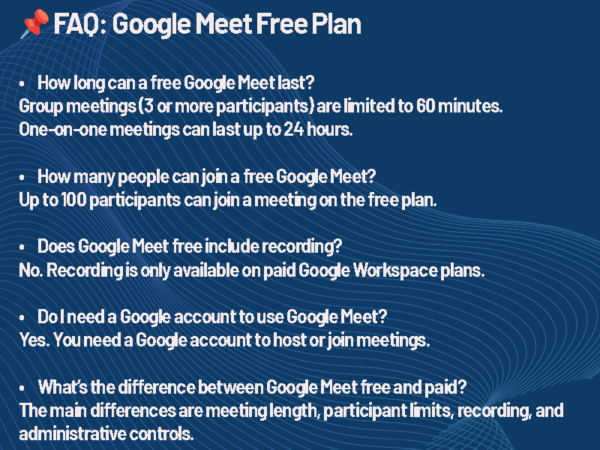
Google Meet is free, but free does not mean unlimited for every kind of meeting. With a personal Google account, one-on-one meetings can run up to 24 hours. Group meetings with three or more participants are limited to 60 minutes.
That is the answer most people are looking for. But for businesses, schools, nonprofits, and workplace teams, the more important question is not whether Google Meet works. It is whether the free version gives your organization enough control, reliability, and visibility for the meetings that matter.
“This meeting will end in 8 minutes.”
If you have seen that warning during a vendor review, staff meeting, board update, or client presentation, you already understand the problem. The tool may be free, but the interruption is not.
Here is what Google Meet’s time limit really means, what changes with paid Google Workspace plans, and how to decide which version makes sense for your organization.
What is the Google Meet time limit?
Google Meet’s time limit depends on the type of account and the type of meeting.
For users without a paid Google Meet or Google Workspace subscription, one-on-one meetings can last up to 24 hours. Meetings with three or more participants can last up to 60 minutes. Google says participants receive a warning at 50 minutes, and the meeting ends at 60 minutes unless the host upgrades.
That distinction matters.
A one-on-one support call may never run into the limit. A team meeting, client presentation, training session, or committee meeting can hit the cutoff quickly.
For casual use, that may be fine. Everyone clicks the link again and rejoins. In a professional setting, that disruption can break momentum, create confusion, and make the meeting platform look less reliable than it really is.
Is Google Meet free?
Yes. Google Meet is free for anyone with a Google account.
The free version includes the core features most people expect from a video meeting platform. Users can host video meetings, invite participants, share screens, and use real-time captions. For small teams, informal conversations, and short meetings, that may be enough.
But the free version has limits that matter in professional environments. The biggest one is the 60-minute cap on group meetings. The others are less visible but just as important: limited administrative control, no native meeting recording for free personal accounts, and less visibility for IT teams responsible for managing workplace technology.
That is the trade-off. Free Google Meet gives users access. Paid Google Workspace gives organizations control.
Is Google Meet Free FAQ
What happens when Google Meet reaches the time limit?
When a free Google Meet group call approaches the limit, participants receive a warning before the meeting ends. At the 60-minute mark, the meeting ends.
The workaround is simple. Start the meeting again or have everyone rejoin through the same link if it remains available. For a casual team check-in, that may only cost 30 seconds.
In a business meeting, it can cost more than time.
If the meeting includes executives, clients, remote employees, vendors, or training participants, the interruption becomes part of the experience. People stop focusing on the content and start focusing on the platform. That is not what you want from a meeting tool.
When the free Google Meet plan makes sense
The free version of Google Meet can be the right choice in some cases.
It works well for small teams that run short internal check-ins. A 15-minute standup, a quick one-on-one, or a casual project sync will not usually run into the 60-minute group limit.
It also works for organizations that already live inside Google’s tools. If users are already working in Gmail and Google Calendar,
Meet is easy to schedule and easy to join.
The free plan also makes sense when meetings do not need to be recorded. If your organization does not need recordings for training, compliance, documentation, or absent stakeholders, that limitation may not matter.
For personal use and small informal teams, Google Meet’s free plan is genuinely useful. The issue starts when organizations try to use a free personal-account tool as the backbone of a managed meeting environment.
When “free” starts costing more than it saves
The 60-minute limit is the most obvious restriction, but it is not the only one IT and facilities teams should consider.
The free version of Google Meet does not give an organization the same level of centralized control that comes with Google Workspace. That means fewer tools for managing users, enforcing policies, reviewing meeting activity, or standardizing how meetings are created and joined.
For a business, school, healthcare organization, or public-sector agency, that can become a governance issue.
A meeting platform is not just a piece of software anymore. It is part of the workplace experience. It touches identity, calendars, rooms, cameras, microphones, displays, security policies, and support workflows.
That is why the free version can create a mismatch. You may have professional meeting rooms, enterprise-grade displays, managed cameras, and standardized conference spaces, but the meeting itself may still be running on individual accounts with limited organizational oversight.
Here is the simplest way to think about the difference between free Google Meet and paid Google Workspace plans.
Free Google Meet is best for individual users and informal meetings. Paid Google Workspace plans are built for organizations that need longer meetings, business email, administrative controls, recording, attendance tools, and stronger governance.
Feature
Free Plan
Paid Plans
Max Participants
100
Up to 500+
Meeting Length
60 minutes (group)
Up to 24 hours
Recording
Not available
Available
Breakout Rooms
Limited / Not included
Included
Admin Controls
Basic
Advanced
Security & Compliance
Standard
Enhanced
Integration (Calendar, Drive, etc.)
Basic
Full ecosystem
This is where Google Meet pricing becomes less about features and more about workflow.
The paid plans do not just add more buttons. They remove friction for organizations that need meetings to be reliable, manageable, and supportable.
Which Google Workspace plan do you need for Google Meet?
Google Meet is included in Google Workspace. The features available to your organization depend on the Workspace edition you choose.
Business Starter is the entry-level business plan. It includes 100-participant video meetings and removes the practical 60-minute group-call limitation that affects free personal accounts. It is a good fit for small teams that need professional email and longer meetings but do not rely heavily on recording.
Business Standard is the more useful floor for many organizations. It supports 150-participant video meetings and includes meeting recording. For teams that need to record trainings, client meetings, internal updates, or stakeholder briefings, this is where Google Meet becomes a more serious business tool.
Business Plus supports larger meetings, with up to 500 participants, and adds features such as attendance tracking and stronger security and compliance tools. It is better suited for mid-size organizations, regulated environments, and teams running large internal meetings or town halls.
Enterprise plans are for larger organizations with more advanced security, compliance, and administrative requirements. At that point, the decision is usually less about Meet alone and more about how Google Workspace fits the broader IT environment.
Is Google Meet Free Pro Tip
What IT and facilities teams should pay attention to
For end users, the question is usually simple: “Will my meeting end after 60 minutes?”
For IT and facilities teams, the question is bigger: “Can we support this as part of our workplace technology environment?”
That means looking beyond the meeting timer.
Can users authenticate through the organization’s identity system? Can admins manage access when someone leaves? Can meeting policies be enforced consistently? Can meetings be recorded when documentation is required? Can the help desk support users without guessing which account created the meeting?
Those questions matter more as meeting rooms become more standardized.
A conference room is no longer just a display, a table, and a speakerphone. It is a managed collaboration space. The meeting platform connects to room scheduling, cameras, microphones, displays, network policies, and user expectations.
If the platform is unmanaged, the room experience becomes harder to support.
What about compliance?
Organizations in regulated industries should be especially careful with free personal accounts.
Google Workspace can support certain compliance needs, including HIPAA-related workflows, but organizations must use the right services, accept the appropriate Business Associate Agreement when required, and configure the environment correctly. A free personal Google account is not the same thing as a managed Workspace environment.
That does not mean every organization needs the most expensive plan. It does mean regulated organizations should not treat the free version of Google Meet as a compliance-ready meeting platform.
For healthcare, finance, education, government, and other sensitive environments, the licensing decision should involve IT, security, legal, and compliance teams before Google Meet becomes part of standard meeting-room operations.
The meeting room question
For AV and workplace teams, Google Meet’s free tier creates a practical question: what kind of room are you building?
If the room is for occasional use, short calls, or informal collaboration, the free version may be enough. If the room is used for executive meetings, client presentations, remote learning, all-hands meetings, or recorded sessions, the free version probably is not the right foundation.
The platform should match the stakes of the room.
A huddle room used for quick internal check-ins has different requirements than a boardroom. A classroom has different requirements than a small nonprofit office. A healthcare consultation space has different requirements than a casual project room.
The mistake is treating all meetings the same.
Frequently asked questions about Google Meet time limits
Does Google Meet have a time limit?
Yes. Free personal Google Meet accounts allow one-on-one meetings up to 24 hours, but group meetings with three or more participants are limited to 60 minutes.
How long can a free Google Meet last?
A free one-on-one Google Meet can last up to 24 hours. A free group meeting with three or more participants can last up to 60 minutes.
Does Google Meet end after 60 minutes?
For free group meetings, yes. Google Meet warns participants before the limit, and the meeting ends at 60 minutes unless the host upgrades.
Can you restart a Google Meet after the time limit?
Yes. In many cases, users can start another meeting or rejoin using the meeting link. That workaround may be fine for informal use, but it can be disruptive in professional meetings.
Is Google Meet free for business?
Google Meet can be used for free with a personal Google account, but businesses that need longer meetings, recording, admin controls, and stronger management should use Google Workspace.
Which Google Workspace plan is best for Google Meet?
For many small organizations, Business Standard is the practical starting point because it includes meeting recording and supports larger meetings than Business Starter. Business Plus is a better fit for larger meetings, attendance tracking, and stronger compliance needs.
The bottom line
Google Meet is free, and for the right use case, the free version works well.
But the Google Meet time limit matters. Free group meetings with three or more participants are limited to 60 minutes. That may be fine for casual use, but it can become a real problem in business meetings, training sessions, classrooms, and managed conference rooms.
For organizations, the decision should not be based only on price. It should be based on the role meetings play in daily work.
If Google Meet is just a convenient way to talk, the free version may be enough. If Google Meet is part of your organization’s meeting-room strategy, workplace experience, training process, or compliance environment, a paid Google Workspace plan is usually the better fit.
The question is not only, “Is Google Meet free?”
The better question is, “What do our meetings need to accomplish, and what happens if the platform gets in the way?”
The AV landscape moves fast. To get these insights delivered directly to your inbox so you never miss a beat, Subscribe to the AVWeek Podcast here.
Microsoft Teams usually changes your status from Available, shown as green, to Away, shown as yellow, after a few minutes of inactivity. In most workplace environments, users experience that change after about five minutes without keyboard or mouse activity.
That simple answer is why people search for this topic. But it does not explain the bigger problem.
The green dot in Microsoft Teams has become a workplace signal. People use it to decide whether someone is available, whether they are responsive, and sometimes, whether they are working. That is where things get messy.
Teams status is not a productivity measurement. It is a presence signal based on activity, calendar state, device behavior, and app status. When people treat it as proof of work, the system starts creating more confusion than clarity.
The 5-Minute Timer Nobody Explains
What happens when Teams goes idle
Here is how Teams status works, why it turns yellow, what users can control, and what IT and workplace leaders should understand before they use presence as a management shortcut.
The quick answer: how long does Teams stay green?
Microsoft Teams typically stays green while the app sees you as active and available.
That usually means:
You are signed in to Teams
Your device is awake
Your computer is not locked
You are not in a meeting or call
You do not have a conflicting calendar event
Teams detects recent activity from your device
Once Teams stops seeing activity for a few minutes, it can switch your status from Available to Away. Microsoft describes this automatic change as happening after “a few minutes.” In day-to-day use, many users see that shift after about five minutes.
That timing can feel exact, but it is better to think of it as a short inactivity window rather than a user-controlled timer.
What Actually Triggers a Status Change?
The important point: Teams is not checking whether you are working. It is checking whether the signals it uses still say you are available.
Why Teams turns yellow when you are still working
This is the part that frustrates users.
You may be reading a document, reviewing a proposal, watching a training video, thinking through a project, working on a second screen, or talking with someone in the room. From your perspective, you are working. From Teams’ perspective, your device may look inactive.
That is how someone can be actively engaged in work and still appear Away.
Teams presence is based on signals. Those signals include device activity, the state of the Teams app, calendar events, calls, meetings, and the device where you were most recently active. Individually, each signal makes sense. Together, they can create status changes that feel inconsistent.
The result is a presence problem, not a people problem.
Why “Away” Doesn’t Mean What You Think
A yellow status does not always mean someone stepped away. It may simply mean Teams stopped receiving the kind of activity signal it uses to show someone as Available.
What actually triggers Teams status changes?
Teams presence is affected by more than whether the app is open.
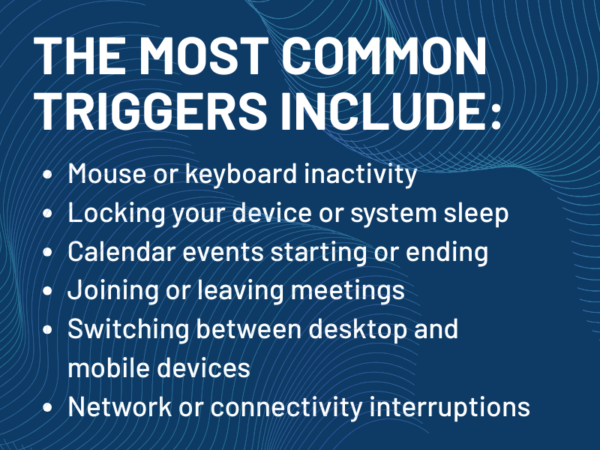
The most common triggers include:
Mouse or keyboard inactivity
Locking your computer
Your computer entering idle or sleep mode
Joining or leaving a meeting
Starting or ending a call
Calendar events that mark you as busy, out of office, or in a meeting
Using Teams on another device
Teams running in the background on mobile
Network or connectivity interruptions
That is why Teams status can seem unpredictable. It is not one setting in one place. It is the result of several workplace systems interacting at once.
Can You Change How Long Teams Stays Green?
A user may think, “I was at my desk the whole time.” Teams may only see, “The device has not shown activity for a few minutes.”
Those are not the same thing.
Can you change how long Teams stays green?
Not in the way most users want.
There is no simple Microsoft Teams setting that lets users or IT administrators change the automatic timeout from five minutes to 15, 30, or 60 minutes. Teams does not offer a standard “keep me green longer” control for the desktop app.
Users can manually set a status, but there is an important limitation: Microsoft allows status durations for statuses other than Available. In other words, you can set Do Not Disturb, Busy, Be Right Back, Away, or Appear Offline for a set period of time, but you cannot simply set Available for two hours and force Teams to keep you green.
That distinction matters.
You can control how you communicate availability. You cannot fully override how Teams detects activity.
How to keep Teams status accurate
There is a difference between keeping Teams “green” and keeping Teams status accurate.
Trying to force a green status all day is the wrong goal. A better goal is making sure Teams reflects your actual availability as clearly as possible.
Here are the legitimate options users should know.
Set your status manually when needed. If you are focused, presenting, stepping away, or unavailable, set the status that matches the situation. This gives coworkers a clearer signal than relying only on automatic presence.
Use status duration. If you need an hour of focused work, set Do Not Disturb for an hour. If you are away for lunch, set Be Right Back or Away for the right amount of time. Teams will reset the status when the duration ends.
Keep your calendar accurate. Teams uses calendar information to show when you are in a meeting, busy, or out of office. If your calendar is wrong, your Teams presence can be wrong too.
The Multi-Device Problem Most People Miss
Most common Teams triggers
Check device sleep settings. If your computer locks or goes to sleep quickly, Teams may show you as Away or Offline sooner than expected. Adjusting device sleep settings may help, depending on your organization’s policies.
Use the Teams for Web presence setting where available. Microsoft provides a Teams for Web option called “Keep my current status when I’m active outside of Teams on the web.” When enabled, Teams can detect activity outside the app so your status does not switch to Away while you are working in other browser tabs or apps.
Avoid fake activity tools. Mouse jigglers, fake activity apps, and similar workarounds may violate workplace policy and create security problems. They also miss the larger point. If employees feel they need tools to prove they are working, the organization has a trust problem, not a Teams problem.
What the green dot really means
The green dot means Teams sees you as Available.
It does not mean:
You are productive
You are watching Teams
You are ready to respond immediately
You are working on the thing someone wants
You are physically sitting at your desk
You are not in deep focus
This is where managers, teams, and organizations often misread the signal.
Presence is useful for communication. It helps coworkers decide whether to message, call, wait, or schedule time later. But it becomes unreliable when people treat it as a performance metric.
Someone can be green and distracted. Someone can be yellow and deeply productive.
Teams status is an availability cue. It is not a work report.
The multi-device issue most people miss.
Presence in Teams is not tied to one device forever. If you are signed in on a desktop and a mobile device, Teams may use the device where you were most recently active to determine your presence.
That creates strange situations.
You may be working at your desk, glance at Teams on your phone, and then have your mobile device influence your presence. If the mobile app goes into the background, Teams may show you as Away even though you are still sitting at your computer.
The reverse can also happen. You may leave your desk but remain active on another device, which can make your presence appear more available than you really are.
This matters in hybrid work environments because employees are rarely using one device in one location. They move between laptops, phones, tablets, meeting rooms, and browser sessions. Presence follows that behavior, and sometimes it follows it poorly.
What Happens When Teams Goes Idle?
When Teams switches from Available to Away, a few visible things change.
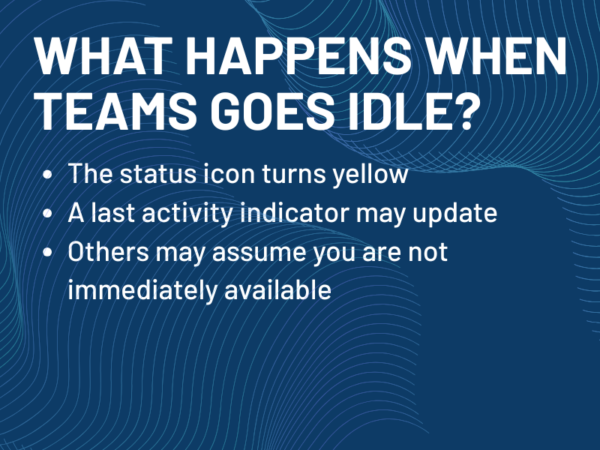
The status icon turns yellow. A last-seen or away-since indicator may appear, depending on the organization’s configuration. Coworkers may assume you are not immediately available.
What does not happen is just as important.
You are not logged out. Messages still arrive. Calls can still come through unless your status or notification settings prevent them. Teams is not blocking collaboration. It is only changing the signal other people see.
That is why users should not panic when Teams turns yellow. It is not a system restriction. It is a presence update.
What IT and AV leaders should pay attention to
For IT, facilities, and workplace teams, Teams presence is not just a user-experience issue. It is connected to broader workplace systems.
Device sleep policies affect presence. So do endpoint management settings, network reliability, VPN behavior, Microsoft 365 calendar configuration, mobile-device usage, and meeting-room workflows.
That means inconsistent presence may not be a Teams problem by itself. It may be a symptom of how the workplace environment is configured.
This becomes especially important in organizations with shared spaces, meeting rooms, front-desk devices, hot desks, and hybrid work policies. A room system, scheduling panel, or shared workstation may create a different presence expectation than a personal laptop.
Presence vs Productivity
The user sees the dot. IT sees the system behind the dot.
Both perspectives matter.
The management problem: presence is not productivity
This is the real issue.
The green dot has become shorthand for work. If someone is green, they are working. If someone is yellow, they are not. That interpretation is easy, fast, and often wrong.
Knowledge work does not always create mouse movement. Reading, planning, reviewing, thinking, writing on paper, and meeting in person may all produce little or no device activity. That does not make them less valuable.
When organizations use Teams presence as a productivity proxy, employees learn the wrong lesson. They learn to manage the dot instead of managing the work.
That creates bad behavior on both sides. Managers start watching status. Employees start worrying about status. Trust erodes, and the collaboration tool becomes a source of anxiety.
Teams presence should help people communicate. It should not become a surveillance shortcut.
What IT and AV Leaders Should Pay Attention To
From an enterprise perspective, presence is not just a user experience issue. It is tied directly to infrastructure and policy.
Device sleep settings, network performance, VPN behavior, and multi-device usage all influence how presence is reported. Inconsistent presence is often a downstream symptom of those upstream decisions.
That makes this less about “fixing Teams” and more about understanding how workplace systems interact. Presence accuracy is not controlled in one place. It is shaped across the environment.
That guide covers practical methods, limitations, and what to consider before using any workaround.
Frequently asked questions about Teams status
How long does Microsoft Teams stay green?
Microsoft Teams usually stays green while Teams sees you as active and available. In many environments, it changes from Available to Away after about five minutes of inactivity, though Microsoft describes the automatic change as happening after a few minutes rather than publishing a user-configurable timer.
Why does Teams turn yellow so fast?
Teams can turn yellow when your computer is inactive, locked, idle, or asleep. It can also change based on calendar events, calls, meetings, mobile app behavior, or which device was most recently active.
Can I change the Teams away timeout?
There is no standard Teams setting that lets users extend the automatic Available-to-Away timeout on the desktop app. You can manually set certain statuses for a duration, but you cannot force Teams to keep you Available for a set period.
How do I keep Teams status green?
The better goal is to keep Teams status accurate. Keep your calendar current, adjust device sleep settings where appropriate, set status manually when needed, and use status duration for focused work or time away. Teams for Web also includes a setting that can help keep your status accurate when you are active outside Teams.
Does mouse movement keep Teams active?
Mouse and keyboard activity can affect whether Teams sees you as active, but presence is not based on one signal alone. Calendar state, app state, device state, and multi-device behavior can also affect status.
Does Teams track productivity?
No. Teams presence is not a productivity measurement. It shows availability based on activity and status signals. It does not prove whether someone is working, focused, distracted, or productive.
Can my employer use Teams status to monitor me?
Your organization can see certain Microsoft 365 activity and usage data depending on its administrative settings, but Teams presence itself is an availability indicator. It should not be treated as a complete record of work or productivity.
The Bottom Line
Microsoft Teams usually changes from green to yellow after a few minutes of inactivity, often around five minutes in everyday use. That behavior can frustrate users, especially when they are working in ways Teams cannot easily detect.
But the larger issue is not the timer. It is what people believe the timer means.
Green does not mean productive. Yellow does not mean lazy. Away does not always mean away.
Teams presence is useful when it helps people communicate. It becomes harmful when organizations treat it as a productivity score.
For users, the best approach is to understand what Teams is actually showing and use manual status settings when they help. For IT and workplace leaders, the best approach is to set clear expectations: presence is a signal, not proof.
Understanding that difference is the first step toward using Teams more effectively.
Microsoft has announced Microsoft 365 Local, an on-premises solution for its popular 365 suite, marking a shift from its typical cloud-based offerings. This new solution, powered by Azure Local, is designed to give European organizations more control over their data, addressing growing concerns about digital sovereignty and data privacy in the region. With options like Sovereign Private Cloud and National Partner Clouds, the service promises enhanced compliance and security for European customers, giving them the flexibility to choose their cloud environment while still benefiting from Microsoft’s powerful tools.
This move comes in response to the increasing push for digital sovereignty in Europe, with countries like Germany and Denmark leading efforts to reduce reliance on American cloud services. As governments and enterprises make a shift towards open-source or homegrown alternatives, Microsoft’s new offering aims to retain its European customer base by addressing their concerns over data control and security. However, whether it will be enough to prevent further migration away from Microsoft remains to be seen.
Microsoft has announced a new version of its 365 productivity suite, “Microsoft 365 Local.”
But far from being an announcement about bringing new features, this announcement seems to go against the grain of the industry’s push toward the cloud by releasing an on-premises solution.
“Today, we are taking the next step in strengthening our European digital commitments to empower our customers with greater choice, more control over their data privacy, and the most robust digital resilience we have ever offered,”– Judson Althoff, Microsoft Executive Vice President and Chief Commercial Officer, said of the announcement.
Its new Sovereign Private Cloud solution will run on Azure Local, a subset of the Microsoft cloud. Microsoft claim that, among other things, that Azure Local is an optimal environment in which to run applications that perform better on-premises due to requirements for low latency or security.
However, rather than having the ability to give customers more control or performance, is this Microsoft trying to head off growing sentiments of European cloud sovereignty?
Azure Local and Microsoft 365 Local’s Offering
Microsoft 365, which includes services like Office 365, Microsoft Exchange Online, and SharePoint Online, is normally only available in Microsoft’s public cloud and runs on the company’s Azure infrastructure.
Microsoft 365 Local and Azure Local work very much the same as that, but with the main difference being that it can be hosted in a Sovereign Public Cloud, Sovereign Private Cloud, and National Partner Clouds.
“Building on our 42-year history as a company in Europe, we are expanding our efforts with Microsoft Sovereign Cloud,” Althoff said.
“This offer spans both public cloud and private digital infrastructure, ensuring our customers can choose the right balance of control, compliance, and capability for their needs.”
Microsoft’s new suite of Cloud offerings
Sovereign Public Cloud
Data stays in Europe, under European law
Data Guardian: operations and access controlled by Europeans
Sovereign controls for policy enforcement
Applies to existing European cloud data center regions with no migration
Sovereign Private Cloud
Azure Local + Microsoft 365 Local: integrated cloud and productivity
Hybrid or disconnected at your location
Validated architecture and partner ecosystem
Virtualization services
National Partner Clouds
For government and critical infrastructure criteria
Government-approved local operator independent from Microsoft
Clouds in Germany (Delos Cloud) and France (Bleu) with local ownership and isolated infrastructure
What this essentially means is that Microsoft will allow users to keep using its services and systems, but on a cloud of their choosing.
This can be a dedicated Microsoft cloud operated across all European data center regions, a private cloud, or even an independent cloud provider that Microsoft has approved.
In addition to this, new features like External Key Management for customer-controlled encryption that can be used for Azure on-premises, Regulated Environment Management for simplified configuration, and Data Guardian for European operations are designed to give employees greater confidence by ensuring that only Microsoft employees in the region can control access to its systems.
The service, currently in preview, will be generally available in all European cloud regions later this year. National Partner Clouds will be offered in France and Germany via Bleu in France and with SAP subsidiary Delos Cloud in Germany.
The Delos agreement will see the company operate a sovereign cloud for the German public sector that is designed to meet the German government’s Cloud Platform Requirements.
Germany has some of Europe’s strictest cloud requirements and has long battled with Microsoft products over compliance. Recent moves in the country could signal that it is seeking to move away from the tech giant’s suite altogether.
A Bid to Quell Growing European Sovereignty Sentiments?
Just days before the Microsoft 365 Local and Azure Local announcements, government administrations in both Germany and Denmark announced they were moving away from the Microsoft suite in a bid to run their systems on open-source software.
In less than three months, Schleswig-Holstein will stop using any of Microsoft’s programs at work, a move affecting 30,000 now, with another 30,000 due to follow suit.
Speaking of the move, the state’s Digitalization Minister, Dirk Schroedter, said the turn to open-source software is designed to “take back control” over data storage and ensure “digital sovereignty.”
“We’re done with Teams!”, Schroedter said.
Equally, Denmark is making larger efforts to remove Microsoft’s suite at both the provincial and national levels.
Minister of Digitalization Caroline Stage Olsen announced that the Danish government will start moving away from Microsoft Office to LibreOffice, with the country’s Minister of Emergency Situations, Torsten Schack Pedersen, telling companies to “create exit plans for the use of cloud services.”
This coincided with the announcement that Denmark’s biggest municipalities — Copenhagen and Aarhus — are ending their use of Microsoft systems.
These sentiments have been echoed by Dutch lawmakers, where members of its parliament passed eight motions urging the government to ditch US-made tech for homegrown alternatives. Equally, technology companies and lobbyists are pressuring the European Commission to take action to reduce the region’s reliance on foreign-owned digital services and infrastructure.
With such sentiment seemingly snowballing across Europe this year, the latest move by Microsoft may signal an effort to stem this anti-American cloud monopoly from gaining wider ground.
Already, the new Microsoft 365 Local and Azure Local release was bundled in a press release titled “Announcing comprehensive sovereign solutions empowering European organizations,” so the company seems to be well aware of where the wind is blowing.
Previously, Microsoft released an EU Data Boundary that aims to ensure European customers’ data doesn’t leave the bloc’s boundaries so that it didn’t get legislated out of the EU market following GDPR.
Yet despite the company showing a willingness to make concessions, it has still fallen foul of EU laws.
An EU probe into Microsoft Teams accused the software giant of abusing its market dominance by tying its video conferencing tool, Teams, to its widely used Office 365.
Microsoft has since unbundled Teams from Office 365 in the EU, but critics said the changes were too narrow.
Microsoft has since promised additional concessions, such as continuing the Teams and Office separation for seven years, in order to avoid a fine.
Is Local Enough to Stop a Microsoft Migration?
To some, Microsoft’s introduction of 365 Local may feel less like innovation and more like damage control.
The company is clearly scrambling to address a problem that has been brewing and is likely exacerbated under current “America First” politics, which have erupted into European concerns about data sovereignty.
Yet the real test won’t be whether Microsoft’s offering is enough to calm concerns, but whether European organizations buy into this hybrid compromise.
For governments and enterprises that have already started their exodus from Microsoft’s ecosystem, 365 Local may be too little, too late.
Yet it might be enough to quell the momentum behind open-source alternatives and offerings present from European cloud providers.
However, the company’s willingness to further fragment its own cloud offering speaks to just how seriously it views the European sovereignty threat to its business model. With Europe being the world’s third-biggest cloud market and with much of it operating under similar regulations thanks to the EU, it is no wonder why.
Whether Microsoft 365 Local succeeds in keeping European customers in the fold or merely delays an inevitable shift toward digital independence remains to be seen.
But one thing is clear: the era of unquestioned American tech dominance in Europe is facing its most serious challenge yet.
Zoom has launched Zoom Workplace, an AI-powered all-in-one communication, collaboration, and productivity suite that replaces the previous Zoom One plan. Unlike the standard Zoom platform, which offers a variety of individual tools, Zoom Workplace integrates essential Zoom features such as Meetings, Chat, Phone, Whiteboard, and Calendar into one package, aiming to provide a unified platform for modern businesses. The inclusion of Zoom’s AI Companion sets Zoom Workplace apart, helping organizations streamline their operations and improve collaboration while minimizing costs and IT complexities.
Zoom Workplace is designed to enhance hybrid work environments by providing a comprehensive toolkit to improve employee performance and engagement. With a range of features for meeting management, workspace reservation, and digital signage, it aims to address the evolving needs of businesses. Zoom believes the platform will be a game-changer for companies looking to consolidate their cloud tools into one efficient ecosystem.
Zoom vs Zoom Workplace: Are they just the same thing?
The simple answer is not exactly. Zoom is a collaboration, communication, and productivity software company that produces a range of tools for the modern workplace. Although it may be best known for its video conferencing software, Zoom has come a long way in recent years.
Today, the company’s portfolio includes everything from contact center software to solutions for hosting virtual events, managing workspaces and meeting rooms, and more.
Zoom Workplace is essentially the AI-powered toolkit offered by Zoom that combines various solutions (like Zoom Meetings and Chat) into one bundle. It’s an upgraded version of Zoom One, the all-in-one collaboration solution intended to compete with offerings like Microsoft Teams.
Here’s everything you need to know about Zoom and Zoom Workplace.
Zoom vs Zoom Workplace: What is Zoom?
Zoom, previously known as Zoom Video Communications, is a communications technology company based in San Jose, California. As mentioned, the company initially rose to fame, offering users one of the most convenient and user-friendly video conferencing platforms.
Since officially launching its first product in 2013, Zoom has committed to constantly innovating and expanding its portfolio, similar to competitors like Google and Microsoft. Not only does it regularly upgrade its collaboration and communication tools with new features and security capabilities, but Zoom has also expanded into new areas.
Zoom Workplace is just one of the various solutions offered by Zoom. The company’s entire portfolio also includes technology for:
Sales Teams: The Zoom Revenue Accelerator system combines Zoom Phone and Zoom Meetings with conversational intelligence and step-by-step guidance for sellers.
Developers: Zoom’s Developer tools provide access to Video SDKs, APIs, and intelligent technologies developers can use to build their custom applications.
Marketing: For marketing teams, Zoom offers access to Zoom Events (for virtual and hybrid event management), Zoom Sessions, and Zoom Webinars.
Customer care: Zoom now has its collection of contact center solutions, workforce engagement tools, and virtual agent technologies for customer service.
Notably, Zoom also has its own partner portal, as well as dedicated solutions for companies leveraging communication technologies for specific industries, like educationand healthcare.
Zoom vs Zoom Workplace: What is Zoom Workplace?
Zoom Workplace is the all-in-one communication and collaboration toolkit offered by Zoom. It replaces the “Zoom One” plan previously provided by the company and offers many of the same capabilities, such as Zoom Chat, Phone, Whiteboard, and Meetings.
Unlike Zoom One, however, Zoom Workplace is powered by the latest artificial intelligence technologies. It includes Zoom AI Companion, which is offered for free alongside all of the standard Zoom communication and productivity apps.
This helps to differentiate Zoom Workplace from solutions like Microsoft Teams, which offer access to the Microsoft Copilot assistant for an extra monthly fee per user.
According to the technology company, Zoom Workplace is intended to address modern businesses’ current collaboration, communication, and productivity needs. Many organizations are looking for opportunities to consolidate their cloud-based technologies into a single toolkit, minimizing costs, complexity, and IT tasks.
Zoom believes that the Zoom Workplace will give companies the ultimate ecosystem for hybrid work, and they can adapt it according to their specific needs.
What’s Included in Zoom Workplace?
Zoom defines Zoom Workplace as an AI-powered collaboration and communication platform designed to boost employee performance and engagement and enhance operations.
Notably, while Zoom Workplace includes all of the central communication, productivity, and space management solutions offered by Zoom (as well as some extras), it doesn’t include Zoom’s marketing, sales, or customer care tools. You’ll need to purchase those options separately, although they can be added to a Zoom Workplace plan.
The Features:
Zoom Workplace’s features include:
Zoom Meetings: Zoom’s AI-powered meeting service supports video and audio conferencing, screen sharing, virtual backgrounds, caption translations, and more.
Zoom Chat: The comprehensive chat tool for instant messaging, one-on-one and team conversations, file sharing, and shared spaces.
Zoom Phone: The cloud VoIP solution offered by Zoom offers a 99.999% uptime SLA, global phone coverage, enterprise-grade security, voicemail, and SMS.
Mail and Calendar: Zoom’s integrated tools for email communication and calendar management are available on desktop and mobile.
Scheduler: Zoom’s all-in-one scheduling app with bookable time slots, automated email and SMS reminders, and integrations to existing calendar apps.
Zoom Docs: The all-in-one AI-powered collaborative workspace, similar to Google Docs, where people can share knowledge asynchronously and in real-time.
Zoom Whiteboard: Zoom’s dedicated virtual whiteboard for creative work, brainstorming sessions, wireframing and more.
Zoom Clips: The short video messaging capability from Zoom, intended for sharing knowledge, onboarding new users, and collaboration.
Zoom Notes: Zoom’s collaborative note-taking application, which integrates with all of Zoom’s other productivity tools
App Marketplace: A full marketplace with hundreds of apps for workplace management, collaboration, marketing, communication, analytics, and more.
Zoom Rooms: The dedicated hybrid and in-person meeting management solution from Zoom, similar to Microsoft Teams Rooms.
Workspace Reservation: A workplace management application for desk and meeting room booking and management.
Digital signage: Integrated digital signage capabilities connected to Zoom’s workspace reservation and booking tools.
Visitor Management: A comprehensive ecosystem where businesses can assign guest accounts to visitors and track the movement of guests.
Workvivo: Zoom’s employee engagement solution, with activity feeds, livestreaming, social feeds, events, goals, shout-outs, and more.
Zoom vs Zoom Workplace: What’s Not Included in Workplace?
The exact functionality you’ll get from Zoom Workplace depends on your chosen pricing plan. Zoom offers a range of options, starting with a Basic free plan for beginners and premium options starting at $13.32 per user per month.
Notably, while all of the features above are offered in some Workplace plans, users can also choose to access the free version of Zoom Workplace and certain features through “add-ons.” For instance, Zoom Scheduler and Zoom Whiteboard are available as add-ons to the free plan.
There’s also a range of other add-ons to explore, such as:
Zoom Large Meetings: From $50 monthly for meeting capacities of up to 1,000 people.
Zoom Clips Plus: The advanced version of Zoom Clips for $6.99 monthly.
Cloud storage: Cloud-based storage for recordings and content from $10 per month.
Translated captions: Instantly AI-translated captions from $5 per month.
Audio conferencing: Options to dial into meetings with phone numbers from $100 per month.
Conference room scheduler: A comprehensive room scheduler enables standards-based SIP/H.323 video conferencing from $49 monthly.
Zoom Phone Power Pack: $25 monthly for enhanced queue analytics and insights.
Zoom Compliance Manager: Comprehensive compliance, archiving, legal hold, risk management, and data governance features. (Per-quote pricing).
Quality of service: Zoom QSS as a service. (Per-quote pricing).
Zoom Mesh: Tools for high-quality webinars and events regardless of bandwidth. (Per-quote pricing).
Customer Managed Key: Solutions for adding your own encryption keys to Zoom data.
Other Zoom Capabilities Not Included with Workplace
Alongside all of the add-ons that missing from specific Zoom Workplace plans as standard, you also won’t get access to Zoom Events, Webinars, and Sessions, Advanced Zoom Rooms capabilities, and Zoom’s contact center solutions.
Additionally, while Zoom Phone is included in some Workplace plans, such as the Zoom Business Plus and Enterprise plans (priced individually according to your needs), it can also be purchased separately. This approach to pricing ensures users can build the ideal Zoom ecosystem for their needs without buying unnecessary features.
Zoom vs Zoom Workplace: Are They the Same?
The various product packages and services offered by different communication and collaboration companies can initially be challenging to understand. Zoom Workplace isn’t the same as “Zoom,” but it includes many of Zoom’s features and tools.
In simple terms, Zoom offers a wide selection of collaboration, productivity, workplace management, marketing, and customer service tools. Zoom Workplace is just one package the company offers that combines a range of features into a single plan.
FAQs
Has Zoom Workplace Replaced Zoom?
Technically no. Zoom Workplace is an all-in-one collaboration, productivity, and communication tool plan offered by Zoom. It replaces the Zoom One plan, previously provided by the company, and offers many similar features but doesn’t include all of Zoom’s capabilities.
What Happened to the Zoom One Bundles?
The Zoom One bundles have been replaced by Zoom Workplace packages. They include most of the same capabilities and additional innovations, specifically in the AI landscape. Customers on Zoom One packages were automatically updated to Zoom Workplace in 2024.
Why Did Zoom Replace Zoom One?
According to Zoom, the company has been innovating over the years, introducing a range of new capabilities for meetings and communications. The new Zoom Workplace offering better represents Zoom’s comprehensive toolkit and focuses on delivering AI-powered capabilities.
Boom Collaboration has introduced the ARC, a dual-host connectivity hub designed to revolutionize video conferencing. The ARC effortlessly combines in-room systems with BYOM (Bring Your Own Meeting) setups, allowing automatic host switching between personal and room-based devices. This smart bridge supports USB-C power delivery, HDMI, and flexible I/O ports, ensuring seamless connectivity with popular platforms like Zoom, Teams, and Google Meet.
With the rise of hybrid work, the ARC offers businesses a flexible solution that doesn’t require sacrificing previous investments in room-based setups. It simplifies conferencing, minimizes maintenance, and delivers AI-powered features in a single device, providing a more intuitive and efficient experience for modern teams. The ARC is set to redefine how organizations approach hybrid meetings.
Manufacturer Boom Collaboration has launched a dual host connectivity hub, set to revolutionise how video conferencing meetings are staged in the future.
The Boom ARC smart bridge for intuitive host switching, is being hailed as the dawning of a new era, by joining in-room and Bring Your Own Meeting (BYOM) systems together for the first time, in a best of both worlds scenario.
“The video conferencing world moves fast, and we know we have to move even faster to stay ahead,” says Co-Founder Fredrik Hörnkvist.
Hybrid reality
“Our focus has always been on creating solutions that simplify collaboration while delivering an exceptional experience, based on any device across any platform in any room. We believe the ARC is unique in the market – designed for the hybrid reality we all work in. It offers automatic switching between room-based and personal devices, while providing USB-C power delivery and versatile input/output options – including HDMI, for effortless flexibility. It’s set to become a new star for us.”
He highlighted: “Since the pandemic a lot of organizations have learned that whether it was hybrid work or bringing everyone back into the office, whatever model they chose, many went all in on dedicated in-room solutions – Teams, Zoom or Google Meet etc. This was great and at the forefront of market developments at the time.
“Now many larger organizations are realizing, after analyzing user behaviour, that employees overwhelmingly prefer the simplicity of a single-cable setup using their own device.
“The ARC solves this dilemma in a magical way so they don’t have to sacrifice the investments already made but can have their cake and eat it by combining both options within the same ecosystem.”
Texas-based Boom offers the complete array of conferencing solutions, from dedicated kits to videobars, multi-camera controllers, in-room systems and cutting edge connectivity.
Fellow founder, Holli Hulett emphasized: “There’s already been so much interest and excitement. The ARC reflects our continuing mission to simplify conferencing and create intuitive tools for modern work.
“Simplicity is our North Star guiding light – but what sets the ARC apart is how effortlessly it blends flexibility and platform-agnostic performance with a zero learning curve.”
Key ARC Features:
Automatic host switching between in-room and BYOM setups
USB-C with power delivery
HDMI support and flexible I/O ports
Cross-platform compatibility (Zoom, Teams, Google Meet, etc)
She concluded: “The ARC is a perfect addition and represents the next chapter following the launch of our ZYGO one-cable-connection hub last year. The ARC can be tailored to perform exactly how customers want. That could be Teams on one screen and Meet on another – any combination in any format is possible. It unites everything in a best of both worlds way.
“In addition, the ARC ensures less maintenance and support for in-room systems whilst also delivering all the AI and smarter features that today’s latest end points deliver, from one intuitive piece of hardware. It’s our new box of tricks that turns traditional conferencing on its head!”
Microsoft is moving beyond meetings. Digital signage is the next area. The tech giant is expanding Microsoft MDEP beyond its current meeting room focus to tackle the world of digital signage.
What This Means for Your Organization
If you’re responsible for AV you’re in charge of signage. Probably across multiple locations. You know the headaches that come with inconsistent platforms, security vulnerabilities, and management nightmares. Microsoft MDEP expansion into digital signage could address these pain points by bringing the same security and management that the platform already delivers to meeting rooms.
The initiative launched formally at InfoComm 2025 in Orlando, with Microsoft partnering with hardware manufacturer IAdea. Add to that software providers Appspace and Planon for the preview phase. This could mean streamlined operations across all your display technologies.
The Microsoft MDEP Platform That’s Already Proven in Meeting Rooms
Microsoft MDEP isn’t new technology. It’s an enterprise version of Android that Microsoft developed to meet strict standards for security, manageability, and integration with workplace systems. It was built independently of Microsoft Teams Rooms. Microsoft MDEP has become the backbone for meeting room devices from major manufacturers including Jabra, Barco, and Yealink.
The platform has gained traction in the meeting space. Companies like Audiocodes, Lenovo, Maxhub, and Shure joined as partners. By February 2025, the roster expanded to include Crestron, Owl Labs, CVTE, and IAdea. While Microsoft MDEP adoption is currently voluntary, it may become mandatory for any device seeking Teams Rooms certification on Android.
Why Digital Signage Needs This Solution
“Partners have reached out to us, asking to expand our support for interactive and non-interactive display solutions,” said Yoav Barzilay, senior program manager at Microsoft. The company is responding to clear market demand for better digital signage management.
The current digital signage landscape presents real challenges for IT departments. Different vendors often mean different software systems, varying security protocols, and inconsistent deployment processes. If your company has displays across multiple buildings or geographic locations, this fragmentation creates complexity and possible security gaps.
John C. Wang, CEO and cofounder of IAdea, highlighted the core problem: “Digital signage plays a central role in enterprise communications and workplace services, yet until now, it’s lacked a consistent, secure platform.”
How the Preview Program Works
IAdea is leading the digital signage preview initiative. They are providing reference hardware implementations and helping software partners adapt their solutions for MDEP. This approach copies the successful strategy Microsoft used when expanding MDEP into meeting rooms.
Appspace and Planon will be the first software platforms available on MDEP devices. That means immediate options for content management and workplace services integration. This partnership model allows Microsoft to leverage existing software ecosystems while ensuring compatibility with their security and management standards.
The End User Impact
For IT decision makers and AV technical directors, Microsoft MDEP expansion could significantly simplify digital signage operations. Organizations can standardize on a single platform that integrates with existing Microsoft infrastructure. The fact that Teams has is the default for the corporate world makes this huge.
The security benefits alone could be substantial. Microsoft MDEP devices would receive the same enterprise-grade security features that meeting room devices enjoy. Those include policy management and consistent update deployment. For companies concerned about display security this standardization could reduce risk while simplifying compliance.
Management efficiency represents another key advantage. Companies already using Microsoft’s device management tools could oversee their entire display ecosystem from familiar interfaces. This consolidation could reduce training requirements for IT staff and streamline troubleshooting processes.
What’s Next for Microsoft MDEP
Microsoft MDEP move into digital signage represents more than just platform expansion. This move signals the company’s broader strategy to own the enterprise device ecosystem. Microsoft is positioning itself to manage everything from conference room displays to lobby information screens under a unified platform. This brings up a concern about “all your eggs in one basket”. That is a conversation for another article.
The preview program will likely reveal how well Microsoft MDEP can adapt to the different needs of digital signage deployments. Unlike meeting rooms, digital signage encompasses everything from simple informational displays to complex interactive kiosks.
What’s Next for Organizations
Companies currently evaluating digital signage solutions may want to watch this Microsoft MDEP preview program closely. The initiative is still in early stages. The potential for simplified management and enhanced security could make Microsoft MDEP solutions attractive for future deployments.
The key will be how quickly Microsoft, and its partners, can demonstrate real-world benefits. For companies already invested in Microsoft’s ecosystem, the integration advantages would be compelling. For others, the decision will likely come down to whether Microsoft MDEP enterprise features justify any additional complexity or cost.
As the preview program progresses, expect to see more manufacturers and software providers joining the Microsoft MDEP ecosystem. It is Microsoft, after all. As more join, that would create a new standard for enterprise digital signage management.
If you or your team recently received an email claiming to be from Microsoft’s “Account Team,” stop before you click. It could be a Microsoft Account Team phishing scam.
A new phishing campaign is making the rounds, using what looks like a legitimate Microsoft notification to target users in Unified Communications (UC) environments. The email urges recipients to click a link to address a so-called “security policy violation”, but the only real security risk is clicking the link itself.
What’s Happening
At a glance, the spoofed email appears authentic: it uses Microsoft branding, a support-style tone, and even includes a “notification ID” to mimic official correspondence. But the email actually routes through an external sender domain. Something like @accountprotection-microsoft.com which should be your first red flag.
Clicking the embedded link sends users to a phishing page designed to steal Microsoft 365 credentials. Once credentials are entered, attackers can pivot to sensitive data, impersonate internal users, or gain access to Teams chats, calendars, OneDrive files, and more.
This campaign is especially dangerous for hybrid work environments where Teams, SharePoint, and Outlook are deeply integrated. For AV and IT teams managing Microsoft-based UC systems, a compromised account could expose shared meeting room calendars, AV device configurations, or even system documentation stored in the cloud.
Why It Matters for AV and IT Pros
Phishing isn’t new but targeting Microsoft 365 accounts in UC environments ups the stakes. These platforms aren’t just for email anymore. They’re the backbone of meeting room scheduling, content sharing, and real-time collaboration.
If your org uses Microsoft Teams Rooms (MTR), compromised credentials could be used to:
Hijack scheduled meetings or inject malware-laden links.
Access configuration files stored in OneDrive or SharePoint.
Leverage compromised accounts to phish other internal users — especially AV or IT admins.
And if your AV-over-IP systems are tied to cloud services or remote management portals? That threat surface just got bigger.
Microsoft Account Team Phishing Scam Protection
Here are practical steps AV and IT teams can take now:
Enable Multi-Factor Authentication (MFA)
This remains the strongest baseline protection against credential theft.
Train Your Team to Inspect Sender Domains
Even a realistic-looking email can be fake. Teach users to hover over sender names and links to see the real source.
Deploy Microsoft Defender or Similar Threat Protection
Advanced anti-phishing tools can help detect and quarantine spoofed emails before they reach inboxes.
Use Conditional Access Policies
Limit what can be accessed from which devices and geographies.
Create an Internal Incident Reporting Workflow
Make it easy for your team to forward suspicious messages to IT or InfoSec for quick analysis.
Phishing campaigns like this one aren’t going away, they’re evolving. But with the right guardrails in place, your AV and IT teams can stay one step ahead.
Got Teams Room questions or need to know how to secure your AV deployments? We’ve got you covered. Stay tuned to AVNation for deeper dives and best practices.
Boom Collaboration is set to debut several new Pro AV products at InfoComm 2025 in Orlando. The company will showcase its smart ARC bridge for seamless switching between in-room systems and BYOM setups, along with an expandable AI-powered speakerphone, and a wireless content sharing tool. These innovations focus on simplifying conferencing, enhancing flexibility, and improving user experience across all platforms and devices.
Boom will also present its “meeting room in-a-box” video kits and the HALO videobar with 4K video, AI auto-framing, and multiple mic options. Designed for easy deployment and high-quality collaboration, Boom’s solutions aim to eliminate the hassle of setup and support hybrid work environments. The company invites IT professionals to experience these innovations firsthand at booth #3329.
Fast-growing AV manufacturer Boom Collaboration will unveil a series of new connectivity and conferencing solutions at InfoComm 2025, focused on simplicity, adaptability, and user experience.
The Texas-based company has developed the Boom ARC smart bridge for seamless host switching between in-room and Bring Your Own Meeting (BYOM) deployments.
Key highlights also include its own dedicated wireless content sharing solution as well as an innovative expandable speakerphone with advanced AI noise cancelling capabilities – that can link up to a further seven devices.
Plethora
In addition, Boom will showcase its ‘meeting room in-a-box’ video kit range, at the three-day Orlando show from June 11-13th. The all-in-one solutions feature video and audio hardware plus its one-cable-connection ZYGO station – designed to simplify installations and capitalize on high demand for Bring Your Own Meeting deployments.
“The video conferencing world moves fast, and we know we have to move even faster to stay ahead,” says Co-Founder Fredrik Hörnkvist.
“Our focus has always been on creating solutions that simplify collaboration while delivering an exceptional experience, based on any device across any platform in any room. The ARC is designed for the hybrid reality we all work in. It offers automatic switching between room-based and personal devices, while providing USB-C power delivery and versatile I/O options – including HDMI, for seamless flexibility.”
He added: “InfoComm is the perfect place to demonstrate how far we’ve come and what’s ahead. These launches reflect our mission to simplify conferencing and create intuitive tools for modern work.”
Bigger Stage
Fellow founder Holli Hulett says Boom will display its complete range of video, audio and connectivity solutions, which are also available from boom.co
“Simplicity is our compass. Our meeting room in-a-box kits for example make it easier to choose the right equipment for any space while delivering the high-quality features teams need to work effectively. They’re practical, efficient, and designed to take the hassle out of getting your stuff done.”
Visitors can also witness the company’s HALO videobar which boasts ultra HD 4K performance, a wide angle 120° field of view, AI Auto-framing and speaker-tracking, 10x ePTZ, six digital array mics plus the option of up to 8 additional expandable mics. It’s available in black or white colors.
“Every InfoComm is a bigger stage for us,” Hulett added. “We’re here to solve real problems – whether it’s streamlining setups or making BYOM seamless. We’ve grown fast, but the most exciting part is what’s next. We can’t wait to share it all from booth #3329 as more than 30,000 global attendees converge in Orlando.”