Microsoft Teams usually changes your status from Available, shown as green, to Away, shown as yellow, after a few minutes of inactivity. In most workplace environments, users experience that change after about five minutes without keyboard or mouse activity.
That simple answer is why people search for this topic. But it does not explain the bigger problem.
The green dot in Microsoft Teams has become a workplace signal. People use it to decide whether someone is available, whether they are responsive, and sometimes, whether they are working. That is where things get messy.
Teams status is not a productivity measurement. It is a presence signal based on activity, calendar state, device behavior, and app status. When people treat it as proof of work, the system starts creating more confusion than clarity.
The 5-Minute Timer Nobody Explains
Here is how Teams status works, why it turns yellow, what users can control, and what IT and workplace leaders should understand before they use presence as a management shortcut.
The quick answer: how long does Teams stay green?
Microsoft Teams typically stays green while the app sees you as active and available.
That usually means:
- You are signed in to Teams
- Your device is awake
- Your computer is not locked
- You are not in a meeting or call
- You do not have a conflicting calendar event
- Teams detects recent activity from your device
Once Teams stops seeing activity for a few minutes, it can switch your status from Available to Away. Microsoft describes this automatic change as happening after “a few minutes.” In day-to-day use, many users see that shift after about five minutes.
That timing can feel exact, but it is better to think of it as a short inactivity window rather than a user-controlled timer.
What Actually Triggers a Status Change?
The important point: Teams is not checking whether you are working. It is checking whether the signals it uses still say you are available.
Why Teams turns yellow when you are still working
This is the part that frustrates users.
You may be reading a document, reviewing a proposal, watching a training video, thinking through a project, working on a second screen, or talking with someone in the room. From your perspective, you are working. From Teams’ perspective, your device may look inactive.
That is how someone can be actively engaged in work and still appear Away.
Teams presence is based on signals. Those signals include device activity, the state of the Teams app, calendar events, calls, meetings, and the device where you were most recently active. Individually, each signal makes sense. Together, they can create status changes that feel inconsistent.
The result is a presence problem, not a people problem.
Why “Away” Doesn’t Mean What You Think
A yellow status does not always mean someone stepped away. It may simply mean Teams stopped receiving the kind of activity signal it uses to show someone as Available.
What actually triggers Teams status changes?
Teams presence is affected by more than whether the app is open.
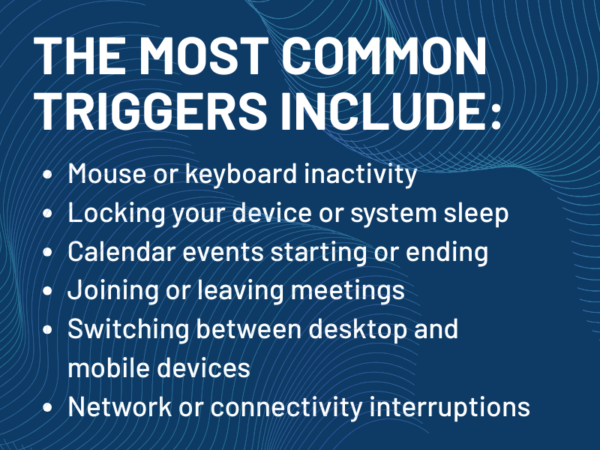
The most common triggers include:
- Mouse or keyboard inactivity
- Locking your computer
- Your computer entering idle or sleep mode
- Joining or leaving a meeting
- Starting or ending a call
- Calendar events that mark you as busy, out of office, or in a meeting
- Using Teams on another device
- Teams running in the background on mobile
- Network or connectivity interruptions
That is why Teams status can seem unpredictable. It is not one setting in one place. It is the result of several workplace systems interacting at once.
Can You Change How Long Teams Stays Green?
A user may think, “I was at my desk the whole time.” Teams may only see, “The device has not shown activity for a few minutes.”
Those are not the same thing.
Can you change how long Teams stays green?
Not in the way most users want.
There is no simple Microsoft Teams setting that lets users or IT administrators change the automatic timeout from five minutes to 15, 30, or 60 minutes. Teams does not offer a standard “keep me green longer” control for the desktop app.
Users can manually set a status, but there is an important limitation: Microsoft allows status durations for statuses other than Available. In other words, you can set Do Not Disturb, Busy, Be Right Back, Away, or Appear Offline for a set period of time, but you cannot simply set Available for two hours and force Teams to keep you green.
That distinction matters.
You can control how you communicate availability. You cannot fully override how Teams detects activity.
How to keep Teams status accurate
There is a difference between keeping Teams “green” and keeping Teams status accurate.
Trying to force a green status all day is the wrong goal. A better goal is making sure Teams reflects your actual availability as clearly as possible.
Here are the legitimate options users should know.
Set your status manually when needed. If you are focused, presenting, stepping away, or unavailable, set the status that matches the situation. This gives coworkers a clearer signal than relying only on automatic presence.
Use status duration. If you need an hour of focused work, set Do Not Disturb for an hour. If you are away for lunch, set Be Right Back or Away for the right amount of time. Teams will reset the status when the duration ends.
Keep your calendar accurate. Teams uses calendar information to show when you are in a meeting, busy, or out of office. If your calendar is wrong, your Teams presence can be wrong too.
The Multi-Device Problem Most People Miss
Check device sleep settings. If your computer locks or goes to sleep quickly, Teams may show you as Away or Offline sooner than expected. Adjusting device sleep settings may help, depending on your organization’s policies.
Use the Teams for Web presence setting where available. Microsoft provides a Teams for Web option called “Keep my current status when I’m active outside of Teams on the web.” When enabled, Teams can detect activity outside the app so your status does not switch to Away while you are working in other browser tabs or apps.
Avoid fake activity tools. Mouse jigglers, fake activity apps, and similar workarounds may violate workplace policy and create security problems. They also miss the larger point. If employees feel they need tools to prove they are working, the organization has a trust problem, not a Teams problem.
What the green dot really means
The green dot means Teams sees you as Available.
It does not mean:
- You are productive
- You are watching Teams
- You are ready to respond immediately
- You are working on the thing someone wants
- You are physically sitting at your desk
- You are not in deep focus
This is where managers, teams, and organizations often misread the signal.
Presence is useful for communication. It helps coworkers decide whether to message, call, wait, or schedule time later. But it becomes unreliable when people treat it as a performance metric.
Someone can be green and distracted. Someone can be yellow and deeply productive.
Teams status is an availability cue. It is not a work report.
The multi-device issue most people miss.
Presence in Teams is not tied to one device forever. If you are signed in on a desktop and a mobile device, Teams may use the device where you were most recently active to determine your presence.
That creates strange situations.
You may be working at your desk, glance at Teams on your phone, and then have your mobile device influence your presence. If the mobile app goes into the background, Teams may show you as Away even though you are still sitting at your computer.
The reverse can also happen. You may leave your desk but remain active on another device, which can make your presence appear more available than you really are.
This matters in hybrid work environments because employees are rarely using one device in one location. They move between laptops, phones, tablets, meeting rooms, and browser sessions. Presence follows that behavior, and sometimes it follows it poorly.
What Happens When Teams Goes Idle?
When Teams switches from Available to Away, a few visible things change.
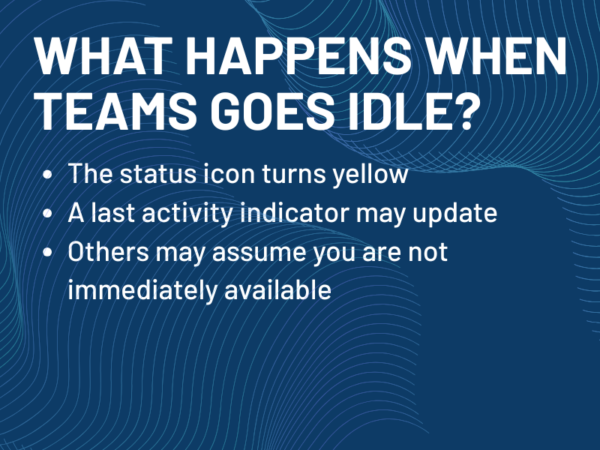
The status icon turns yellow. A last-seen or away-since indicator may appear, depending on the organization’s configuration. Coworkers may assume you are not immediately available.
What does not happen is just as important.
You are not logged out. Messages still arrive. Calls can still come through unless your status or notification settings prevent them. Teams is not blocking collaboration. It is only changing the signal other people see.
That is why users should not panic when Teams turns yellow. It is not a system restriction. It is a presence update.
What IT and AV leaders should pay attention to
For IT, facilities, and workplace teams, Teams presence is not just a user-experience issue. It is connected to broader workplace systems.
Device sleep policies affect presence. So do endpoint management settings, network reliability, VPN behavior, Microsoft 365 calendar configuration, mobile-device usage, and meeting-room workflows.
That means inconsistent presence may not be a Teams problem by itself. It may be a symptom of how the workplace environment is configured.
This becomes especially important in organizations with shared spaces, meeting rooms, front-desk devices, hot desks, and hybrid work policies. A room system, scheduling panel, or shared workstation may create a different presence expectation than a personal laptop.
Presence vs Productivity
The user sees the dot. IT sees the system behind the dot.
Both perspectives matter.
The management problem: presence is not productivity
This is the real issue.
The green dot has become shorthand for work. If someone is green, they are working. If someone is yellow, they are not. That interpretation is easy, fast, and often wrong.
Knowledge work does not always create mouse movement. Reading, planning, reviewing, thinking, writing on paper, and meeting in person may all produce little or no device activity. That does not make them less valuable.
When organizations use Teams presence as a productivity proxy, employees learn the wrong lesson. They learn to manage the dot instead of managing the work.
That creates bad behavior on both sides. Managers start watching status. Employees start worrying about status. Trust erodes, and the collaboration tool becomes a source of anxiety.
Teams presence should help people communicate. It should not become a surveillance shortcut.
What IT and AV Leaders Should Pay Attention To
From an enterprise perspective, presence is not just a user experience issue. It is tied directly to infrastructure and policy.
Device sleep settings, network performance, VPN behavior, and multi-device usage all influence how presence is reported. Inconsistent presence is often a downstream symptom of those upstream decisions.
That makes this less about “fixing Teams” and more about understanding how workplace systems interact. Presence accuracy is not controlled in one place. It is shaped across the environment.
Want to Stay Active on Teams?
If your goal is to maintain a green status throughout the day, there are several approaches users take, each with trade-offs. We break those down here: https://www.avnation.tv/2024/10/04/keeping-always-active-on-teams/
That guide covers practical methods, limitations, and what to consider before using any workaround.
Frequently asked questions about Teams status
How long does Microsoft Teams stay green?
Microsoft Teams usually stays green while Teams sees you as active and available. In many environments, it changes from Available to Away after about five minutes of inactivity, though Microsoft describes the automatic change as happening after a few minutes rather than publishing a user-configurable timer.
Why does Teams turn yellow so fast?
Teams can turn yellow when your computer is inactive, locked, idle, or asleep. It can also change based on calendar events, calls, meetings, mobile app behavior, or which device was most recently active.
Can I change the Teams away timeout?
There is no standard Teams setting that lets users extend the automatic Available-to-Away timeout on the desktop app. You can manually set certain statuses for a duration, but you cannot force Teams to keep you Available for a set period.
How do I keep Teams status green?
The better goal is to keep Teams status accurate. Keep your calendar current, adjust device sleep settings where appropriate, set status manually when needed, and use status duration for focused work or time away. Teams for Web also includes a setting that can help keep your status accurate when you are active outside Teams.
Does mouse movement keep Teams active?
Mouse and keyboard activity can affect whether Teams sees you as active, but presence is not based on one signal alone. Calendar state, app state, device state, and multi-device behavior can also affect status.
Does Teams track productivity?
No. Teams presence is not a productivity measurement. It shows availability based on activity and status signals. It does not prove whether someone is working, focused, distracted, or productive.
Can my employer use Teams status to monitor me?
Your organization can see certain Microsoft 365 activity and usage data depending on its administrative settings, but Teams presence itself is an availability indicator. It should not be treated as a complete record of work or productivity.
The Bottom Line
Microsoft Teams usually changes from green to yellow after a few minutes of inactivity, often around five minutes in everyday use. That behavior can frustrate users, especially when they are working in ways Teams cannot easily detect.
But the larger issue is not the timer. It is what people believe the timer means.
Green does not mean productive. Yellow does not mean lazy. Away does not always mean away.
Teams presence is useful when it helps people communicate. It becomes harmful when organizations treat it as a productivity score.
For users, the best approach is to understand what Teams is actually showing and use manual status settings when they help. For IT and workplace leaders, the best approach is to set clear expectations: presence is a signal, not proof.
Understanding that difference is the first step toward using Teams more effectively.

Tim Albright is the founder of AVNation and is the driving force behind the AVNation network. He carries the InfoComm CTS, a B.S. from Greenville College and is pursuing an M.S. in Mass Communications from Southern Illinois University at Edwardsville. When not steering the AVNation ship, Tim has spent his career designing systems for churches both large and small, Fortune 500 companies, and education facilities.
- Tim Albright
- Tim Albright

- Tim Albright

- Tim Albright