If you’ve ever wondered whether Microsoft Teams is quietly tracking where you are, you’re not alone.
It’s one of the most common questions in today’s hybrid workplace:
Can Microsoft Teams track your location?
The short answer is no, not in the way most people think. But there are location-related features and data points that create confusion, and that gap between perception and reality is where workplace trust starts to break down.
Let’s break down what Teams actually does, what your employer can see, and why this topic keeps coming up.
What Microsoft Teams Actually Tracks
At its core, Teams is a collaboration tool. It tracks activity and presence, not your physical movement.
When you’re active on your device, your status reflects that. Step away for a few minutes, and it changes. That behavior often gets interpreted as tracking, but it’s simply inactivity detection. There’s no awareness of where you are, only whether you’re interacting with your device.
Behind the scenes, Teams also logs login activity as part of the broader Microsoft 365 ecosystem. That includes timestamps, device information, and IP addresses. Those IP addresses can sometimes be tied to a general geographic region, which is where the confusion around Microsoft Teams location tracking starts to creep in.
But this is log-based data used for security, compliance, and system performance. It is not real-time tracking.
If you want a deeper dive into how Teams determines activity and presence, we break it down here:
Keeping Always Active on Teams
The Location Features Most People Don’t Know About
Where this conversation gets more nuanced is in Teams’ location-aware features. Most users interact with these without ever being formally told what they are or how they work.
Teams allows users to share their location directly in chats or channels, similar to a messaging app. This is entirely user-initiated and only visible to participants in that conversation. It’s not automatic and not persistent.
There’s also emergency location detection tied to Teams Phone. When a user places an emergency call, the system attempts to identify their physical location so emergency services can be routed correctly. This is a compliance-driven feature, not a monitoring tool, but it relies heavily on accurate network configuration.
Another feature that often gets misunderstood is work location status. Users can manually set whether they are in the office, remote, or away. This is visible to colleagues and managers, but it is self-reported. It’s a presence signal, not a GPS coordinate.
Finally, Teams can infer general location context based on network connections. If a device connects through a corporate network, VPN, or known office subnet, that context can be reflected in certain data points. Again, this is not precise tracking, but it can indicate where work is happening at a high level.
What Your Employer Can Actually See
This is where perception and reality diverge the most.
Your employer cannot open Teams and watch your real-time location. There is no built-in map, no GPS tracking, and no way to follow someone’s movement through the platform.
What they can see is activity and usage data. That includes presence status, meeting participation, and login history. In environments with more advanced administration, tools like Microsoft Purview provide access to audit logs and reporting that give additional insight into how Teams is being used.
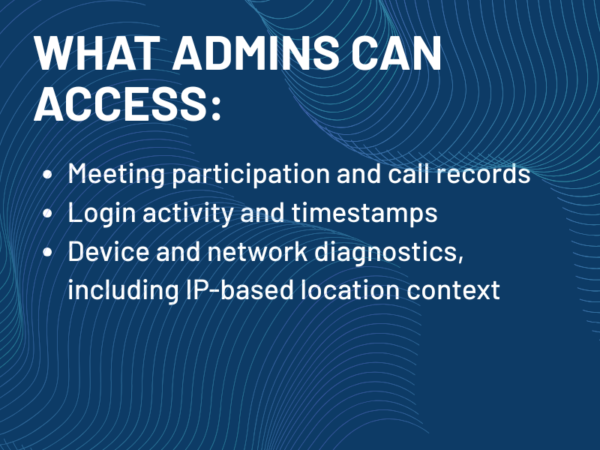
Here’s the clearest way to think about it:
What admins CAN access:
- Meeting participation and call records
- Login activity and timestamps
- Device and network diagnostics, including IP-based location context
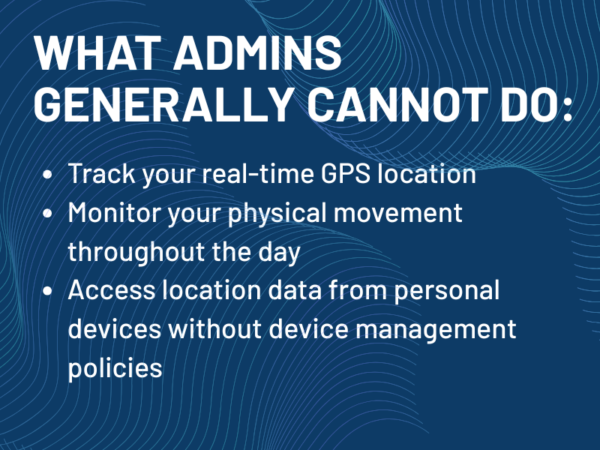
What admins generally CANNOT do:
- Track your real-time GPS location
- Monitor your physical movement throughout the day
- Access location data from personal devices without device management policies
That distinction is where most of the confusion around Microsoft Teams location tracking lives.
Why the “Location Tracking” Myth Exists
The idea that Teams is tracking your location didn’t come out of nowhere. It’s the result of how work has changed.
Hybrid work removed the visual cues managers relied on for decades. At the same time, employees became more aware of digital visibility and more protective of their privacy. Teams sits right in the middle of that shift, acting as both the collaboration hub and the perceived source of oversight.
There’s also confusion with other enterprise systems. VPN logs, endpoint management tools, and security platforms can provide deeper visibility into device usage and network activity. But those are separate layers of the technology stack. Teams often gets the blame because it’s the most visible interface.
Even something as simple as a presence indicator can feel more significant than it is. When that status changes from green to yellow, it can feel like a signal being sent to someone else. In reality, it’s just reflecting inactivity on your device.
The Real Factor: Your Network, Not Teams
If there’s one place where location data becomes meaningful, it’s your network infrastructure, not Teams itself.
When you connect to a corporate network, whether that’s office Wi-Fi, a managed LAN, or a VPN, your IP address is logged. That IP can be associated with a geographic location, which is essential for security policies and emergency call routing.
For IT and AV teams, this goes even further. Meeting room systems, scheduling panels, and occupancy sensors are increasingly feeding presence and usage data into the same Microsoft 365 environment. A conference room showing as occupied, or a system indicating a meeting is in progress, becomes another form of location context.
None of this is inherently invasive. But all of it reinforces the need for clear policy and ownership.
Visibility vs. Tracking: What This Really Means
Most people asking about Microsoft Teams location tracking are really asking a different question.
They want to know how visible they are.
Teams can provide signals about activity. It can indicate whether you’re engaged, in meetings, or responsive. What it cannot do is tell someone exactly where you are or what you’re doing away from your device.
That’s a meaningful difference, and one that often gets lost in the conversation.
The Real Risk: The Policy Gap
The technology itself is not the issue. Teams is designed with flexibility and privacy controls. The challenge most organizations face is a lack of clear policy.
When there’s no clear definition of what data is collected, who can access it, or how it should be used, that’s where trust begins to erode. Not because the system is doing something wrong, but because no one has clearly explained what it’s doing at all.
Organizations that handle this well are not necessarily more restrictive. They’re more transparent.
What Employees Should Actually Know
If you simplify this down to what matters, here’s the reality behind microsoft teams location tracking:
- Teams does not track your real-time physical location
- Your activity and presence are visible within the platform
- Your network connection can suggest general location
- Admins can access usage and audit data
That’s it. No hidden GPS tracking. No real-time monitoring of your movements.
Final Thought
The fear that Teams is tracking your location says more about how work has changed than what the software actually does.
In a hybrid world, visibility feels different. And tools like Teams sit at the center of that shift.
But it’s not tracking where you go.
It’s reflecting how you work.

Tim Albright is the founder of AVNation and is the driving force behind the AVNation network. He carries the InfoComm CTS, a B.S. from Greenville College and is pursuing an M.S. in Mass Communications from Southern Illinois University at Edwardsville. When not steering the AVNation ship, Tim has spent his career designing systems for churches both large and small, Fortune 500 companies, and education facilities.
- Tim Albright

- Tim Albright

- Tim Albright

- Tim Albright